[Teams] Set Up Automated Gifts
Last updated: November 15, 2025
You can use Goody to automate birthday, work anniversary, and onboarding gifts.
Ensure your Contact lists are set up.
On the relevant Contact list, click Autogift.
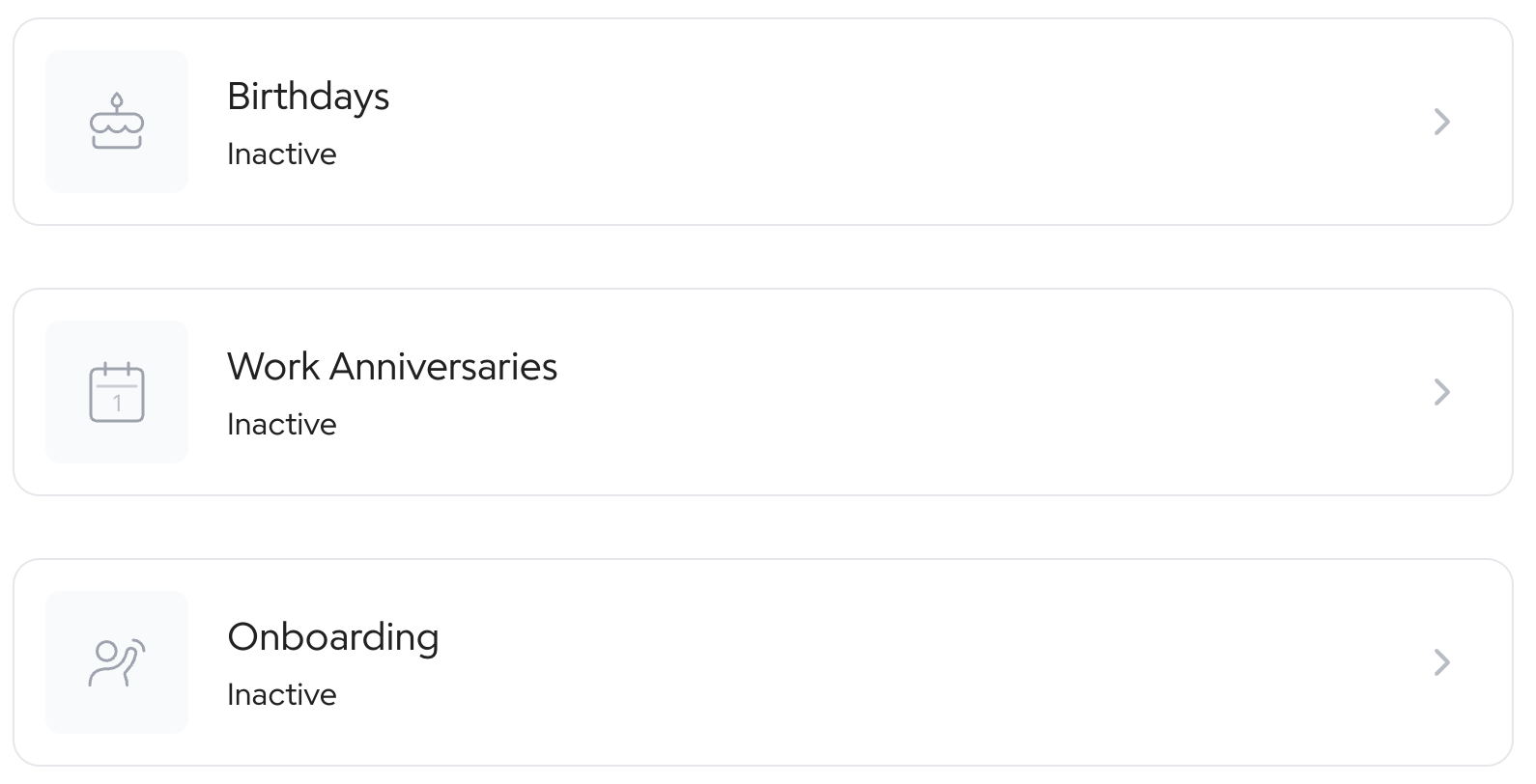
Choose the occasion you want to set up autogifts for.
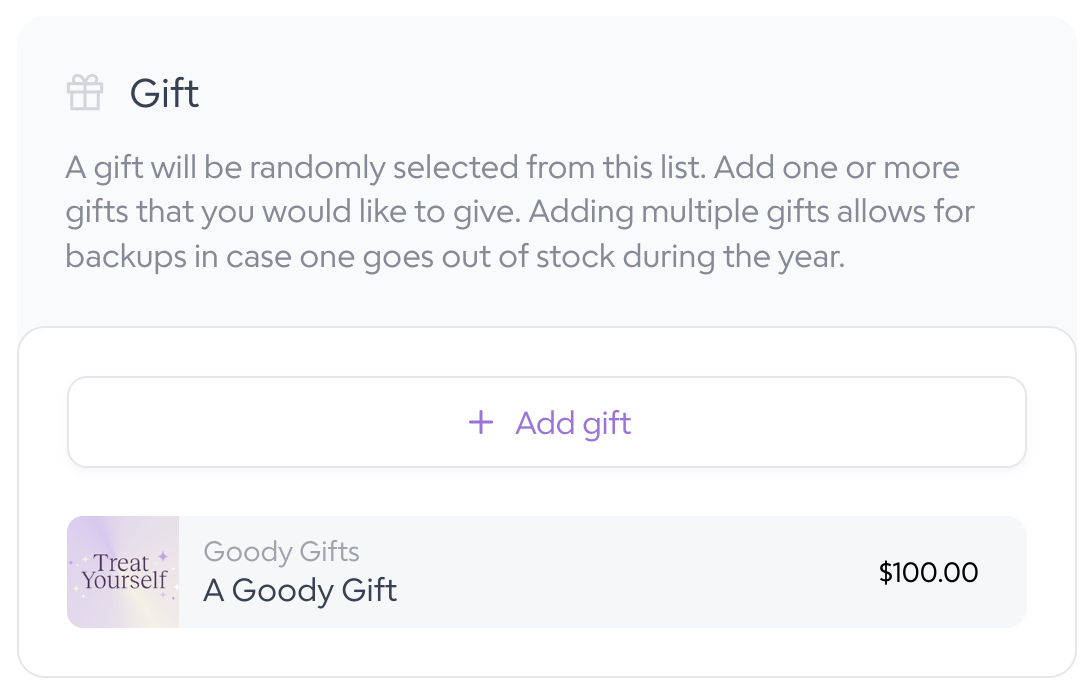
Choose your gift. We recommend the Gift of Choice or a Collection to give recipients options to choose from.
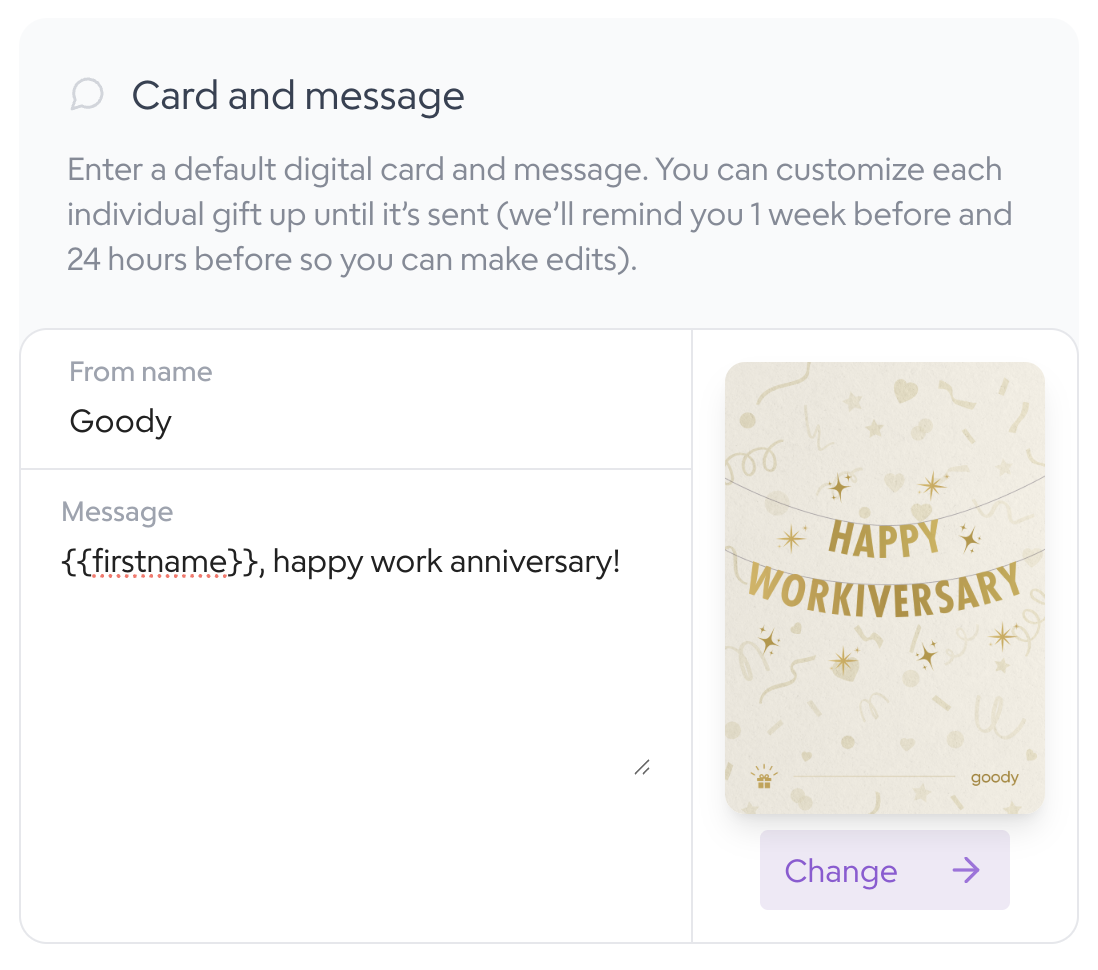
Set up your card and message. Click "insert" to automatically use a recipient's first name in the card message.
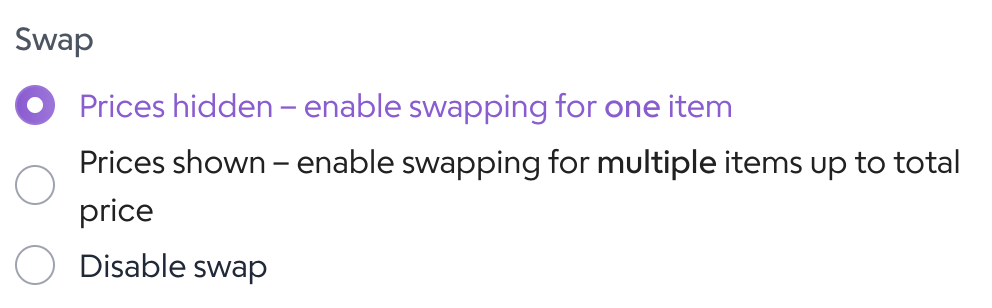
If using the Gift of Choice, decide if you would like to hide or show pricing.
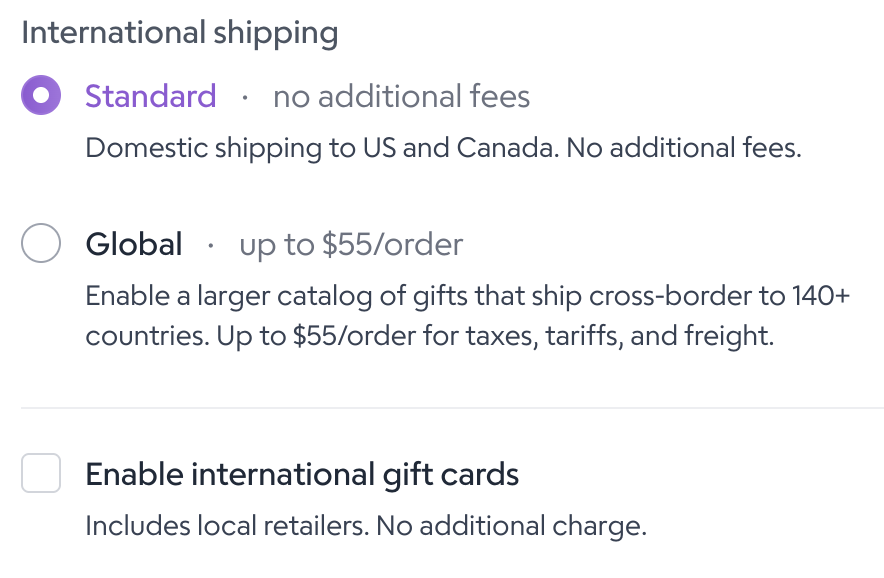
Choose your international shipping settings.
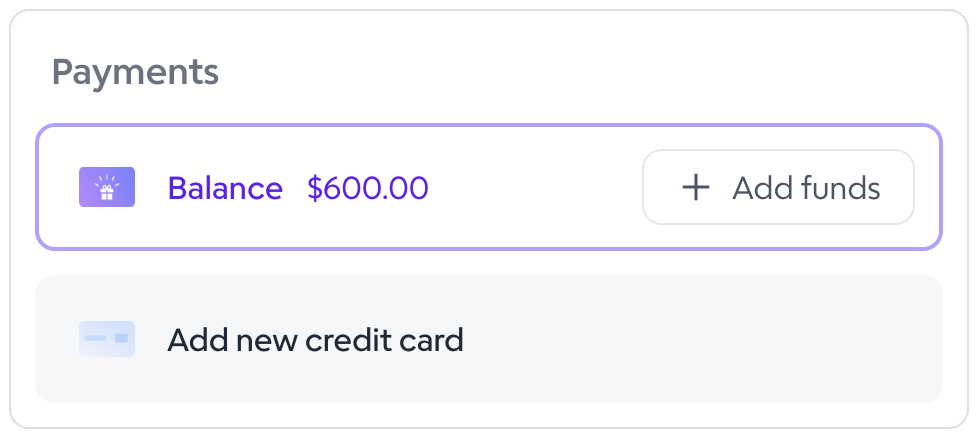
Choose your payment method.
If you aren't ready to turn on the autogift yet, you can save it as a draft. Otherwise, click Activate.
Work Anniversary Gifts
To send work anniversary gifts, you need to decide which tenures will receive a gift.
Options:
Same gift every year (e.g. everyone receives $50 Gift of Choice on every anniversary)
Different gifts every year
Same gift for ranges of years (e.g. years 1-4 receive $50 Gift of Choice)
Gifts on a specific set of years (e.g. years 5, 10, 15, 20 receive different gifts)
If all tenures receive the same gift, select All Tenures. If you want to set a gift to go out for a specific tenure, select Single year. If you want a range of tenures to get the same gift, select Range of years.
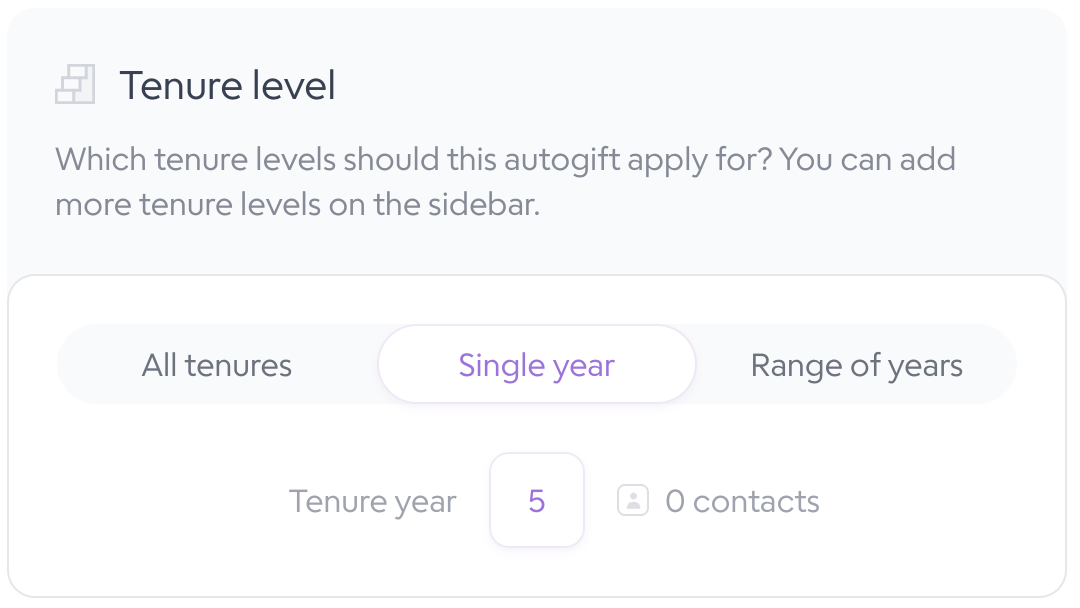
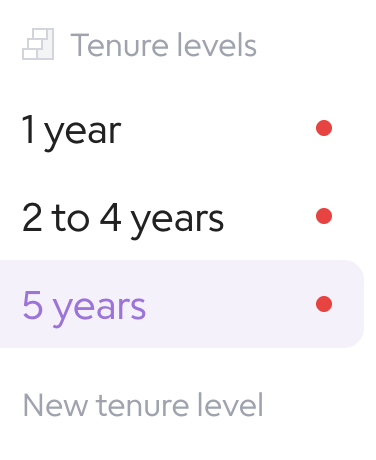
You will need to save an autogift for each tenure level, using the sidebar on the left. Range of years and Single year can be combined, as seen below.
Onboarding Gifts
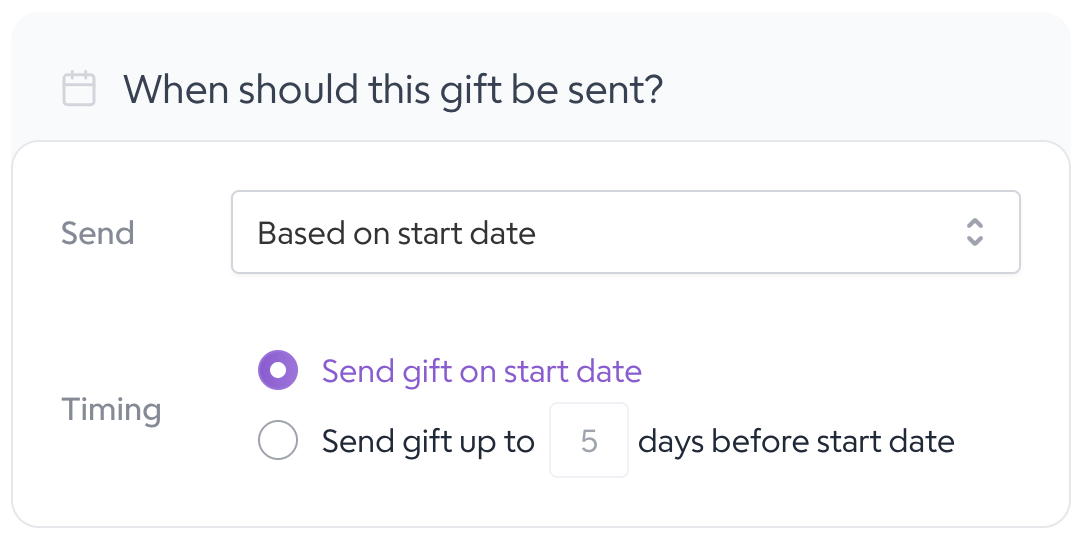
Onboarding gifts can only be set for HRIS connections. They can either be set based on the recipient's start date (recommended) or based on the day they are added to your HRIS.