Manage Team Member Access
Last updated: November 15, 2025
With unlimited licenses, you can invite as many team members to Goody as you would like. This article will guide you on how to set up Goody to easily manage multiple teams!
Manage departments with Workspaces
Workspaces split Goody into different departments. Members in a Workspace can only see gift history and Collections within their own Workspace. Branded swag is available across all Workspaces.
Typically, most organizations set up one Workspace for each team or department. You may have one called Sales, one called HR, and one called Marketing.
If pre-funding your gifts, you can allocate Balance to a workspace for team members to share a pool of funds for gifting.
To create a workspace:
Click the profile icon in the top right.
Click My Organization.
Click Workspaces.
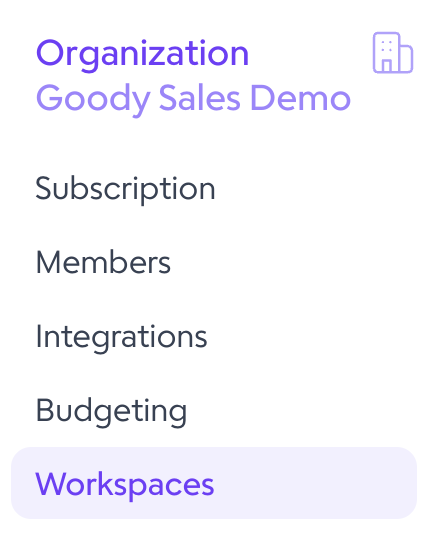
Click + New Workspace.
To invite users to a workspace:
Note: Gift recipients do not need to be members to receive gifts.
Click Members.
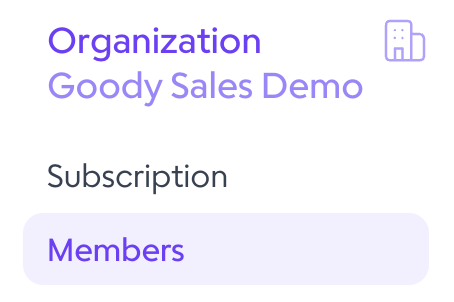
Click Invite Members.
Add the new member emails.
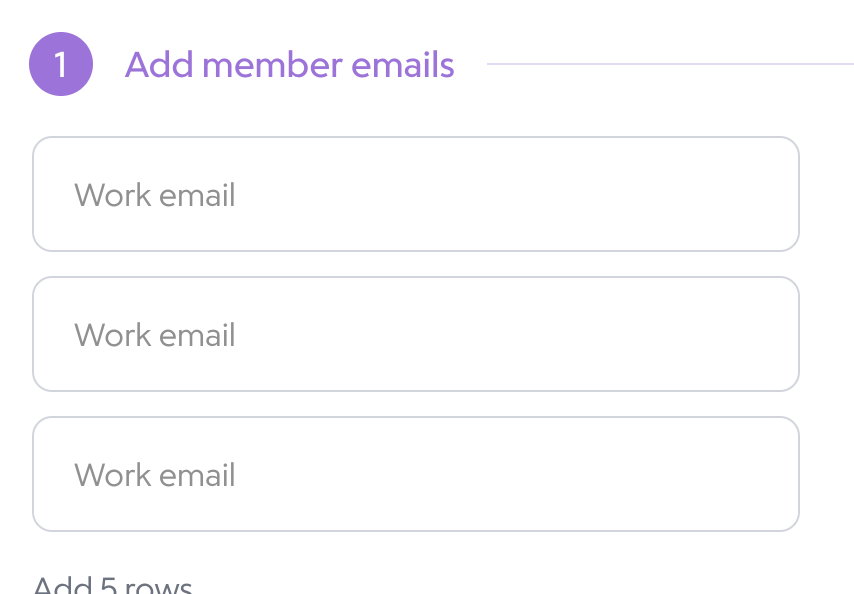
Select the Workspace to invite them to.
Click Send Invites.